


Contributing using Pull Requests
On this page, we provide all the necessary resources and information for you to be able to write content autonomously.
 Tip
TipPlease, notice that Tilburg Science Hub Building Blocks, Tutorials and Examples are written as Markdown files. We encourage you to familiarize with the Markdown formatting before starting to write - it's very easy!
If you want to revise, modify, add, or remove content from existing pages, or report a bug
Simple changes
The easiest method to make straightforward updates to Markdown files is to use GitHub's web-based file editor.
- Click on the "Edit this page" button at the bottom of the page you want to edit on our website.

- You will be redirected to our GitHub repository where that file is hosted. You will need to fork our repository in order to propose changes.

- Edit the file and then submit a new pull request. That's it.
Elaborate changes
For more complex updates or editing more than a file, it's better to use a local Git workflow to create a pull request.
After having set up your GitHub account, follow the following steps (required only the first time you set up a local project):
-
Fork the originating repository to your GitHub profile (press the "fork" button on GitHub, which creates a copy of this project in your own GitHub account).
-
Within your version of the forked repository, create a new branch for each significant change being made.
-
Navigate to the file(s) you wish to change within the new branches and make revisions as required.
-
Commit all changed files within the appropriate branches.
-
Create individual pull requests from each of your changed branches to the
main-flaskbranch within the originating repository. -
Maintainers and other contributors will review your pull request. When your pull request is approved, it will be merged into the upstream Tilburg Science Hub repo. If you receive feedback, make changes using your issue-specific branches of the forked repository and the pull requests will update automatically.
-
Repeat as needed until all feedback has been addressed.
Host our site local to see your changes
If you want to make changes to, for example, our templates, or you want to see how your changes will look on the site you have to run our site locally using Flask.
-
Fork the originating repository to your GitHub profile (press the "fork" button on GitHub, which creates a copy of this project in your own GitHub account).
-
Clone the repository using git clone https://github.com/{your_github_account}/website.git
-
Follow the installation guidelines that are in README.md file in this repository (either using Docker or running by flask command). You can find there the exact commands to type in the command prompt to start running the website.
-
Within your version of the forked repository create a new branch for each significant change being made. Please note that since the website fetches the content from the database, in order to see your changes on the website you need to rerun
python content_to_db.pyscript.
If you want to write new content
-
First, you'll need to prepare the content as Markdown file(s). Follow our templates below to get started. In case you want to feature your project in the Examples section, please contact us.
-
Fork the originating repository to your GitHub profile (press the "fork" button on GitHub, which creates a copy of this project in your own GitHub account).
-
Clone the repository using git clone https://github.com/{your_github_account}/website.git
-
Follow the installation guidelines that are in README.md file in this repository (either using Docker or running by flask command). You can find there the exact commands to type in the command prompt to start running the website.
-
Within your version of the forked repository create a new branch for each significant change being made. Please note that since the website fetches the content from the database, in order to see your changes on the website you need to rerun
python content_to_db.pyscript. -
Maintainers and other contributors will review your pull request. When your pull request is approved, it will be merged into the upstream Tilburg Science Hub repo. If you receive feedback, make changes using your issue-specific branches of the forked repository and the pull requests will update automatically.
-
Repeat as needed until all feedback has been addressed.
TipDon't know how to do this? You can follow a great tutorial about contributing on GitHub.
Place new sections in a logical order.
If you have written a new section which you wish to add to the website, make sure they are where they suppose to be.
 Example
You wish to add a Building Block on "Advanced Git Commands". Now, imagine that once your page is completed, you notice that your new section appears in the first position:
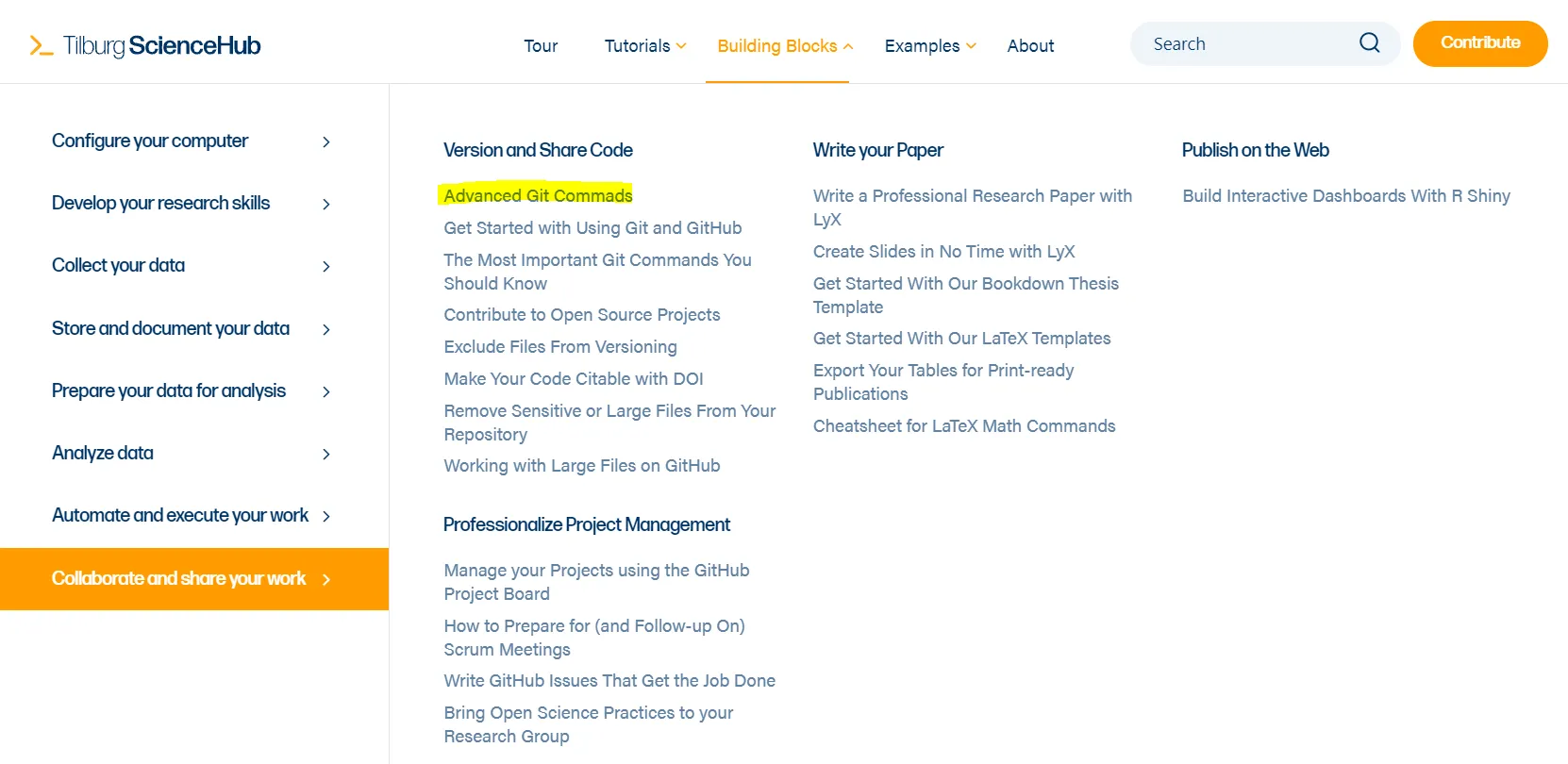
Does it make sense to have the "Advanced Git Commands" section before the "Get Started with Git and Github"? It does not.
- Ideally you would place it for instance, just after "The Most Important Git Commands You Should Know". This way, when going through the tutorials, the new content would come in a more natural order.
How to choose the order of sections?
Well, using our Markdown Templates (which can be found below) it is quite a simple task. You only need to change the value of the parameter "weight" in the markdown file:

TipA weight set equal to 1 will place your section in the first place, likewise the prior example. If you wish to make it appear after other sections, make sure to give it a higher weight.
Contribution Templates
 Warning
First, make sure to read our code of conduct as well as our writing guidelines.